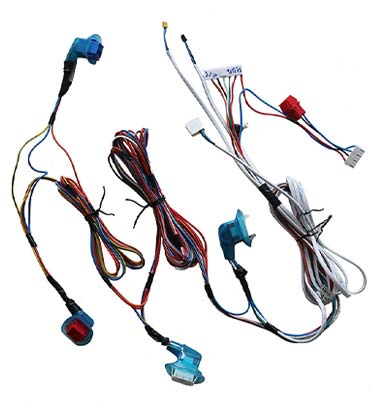
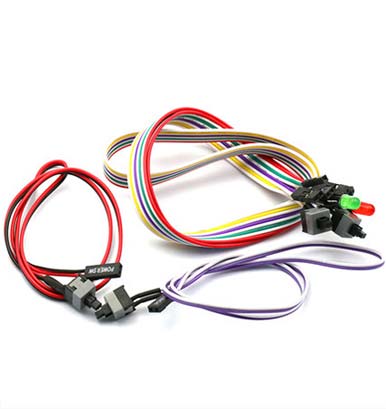
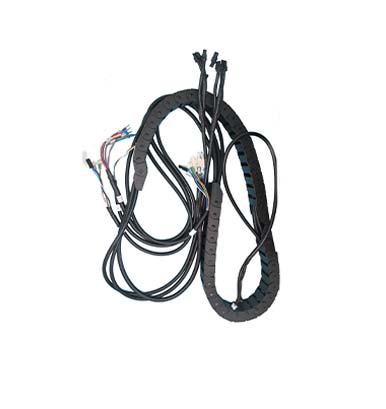
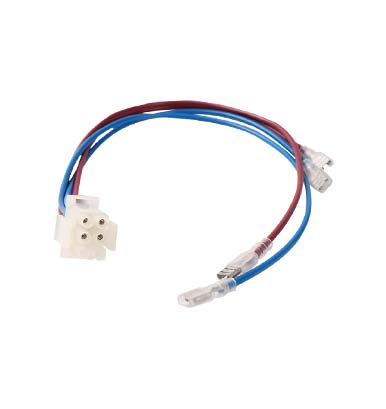
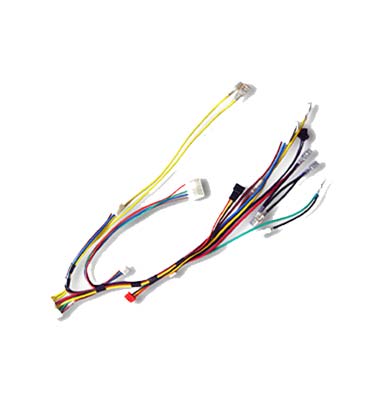
Choosing the Right Wheelchair Lift Wiring Harness Based on Your Needs
Mar 06,2024

Even in 2026, VGA cables remain a staple in many setups—especially in education, industrial environments, legacy systems, projectors, and older monitors or PCs. Despite the shift to HDMI and DisplayPort, millions still rely on VGA (Video Graphics Array) for reliable analog video transmission. But when your VGA cable suddenly stops working—showing "No Signal," flickering images, distorted colors, or no display at all—it can be frustrating.
This guide from Holly Electronics, a professional vga cable factory, explains the real technical causes and provides field-tested fixes based on our experience as a professional cable assembly manufacturer.
Before replacing anything, match your situation with these common symptoms:
No Signal on Monitor – screen stays black
Blurry or Ghosting Image
Flickering / Intermittent Display
Wrong or Low Resolution
Color Distortion (pink/green tint)
Image disappears when cable is moved
Each symptom points to different root causes in the VGA cable, port, or system settings.
Try these steps first:
Reconnect both ends firmly – VGA uses 15 pins; even slight looseness causes failure
Test with another VGA cable
Try another monitor or PC
Check for bent pins inside the connector
Reset display resolution to 1024×768 or 1280×1024
If the problem remains, continue with deeper diagnosis.
No Signal / "No VGA Cable Detected" / Blank Screen. This is by far the most frequent complaint—your monitor powers on but shows no image from the PC.
Flickering, Distorted Colors, or Lines on Screen. Analog signals like VGA are prone to interference, especially over longer runs or with poor shielding.
Intermittent Connection (Works After Unplugging/Replugging). Often due to loose pins, oxidation, or ground loop issues.
Resolution or Refresh Rate Limitations / Blurry Image: VGA maxes out reliably at 1080p@60Hz; pushing higher can cause artifacts.
Monitor defaults to Wrong Input or PC Not Detecting DisplayCommon in multi-monitor setups or after hardware changes.
Cable Damage (Bent Pins, Frayed Wires)Physical wear from frequent use or improper handling.
Follow these in order—most issues resolve in the first few steps.
Step 1: Verify Basic Hardware Connections (Most Common Fix)
Power off both your PC and monitor completely (unplug power cords for 30-60 seconds to reset).
Inspect the VGA connectors (blue D-sub 15-pin): Ensure no bent, broken, or missing pins. Clean ports gently with compressed air or a soft brush—avoid metal tools.
Firmly plug the cable into both the PC's VGA output (or graphics card) and the monitor's VGA input. Tighten the thumbscrews if available.
Rock the connector gently to check for looseness.
Switch monitor input source to VGA (use monitor buttons/menu—many default to HDMI).
Power on the monitor first, then the PC.
Pro Tip: Test with a known-working VGA cable if possible. Swap ends or try a shorter cable to rule out length-related signal degradation.
Step 2: Force Display Detection in Windows
If the screen is blank but the PC boots (fans spin, lights on), press Windows key + P repeatedly to cycle modes: PC screen only → Duplicate → Extend → Second screen only.
Right-click desktop → Display settings → Multiple displays → Detect.
For older systems or projectors: Boot into Safe Mode (hold Shift during restart) to check if VGA works there—rules out driver conflicts.
Step 3: Update or Reinstall Graphics DriversOutdated/corrupted drivers often block VGA output, especially on integrated graphics or after Windows updates.
Right-click Start → Device Manager → Display adapters.
Right-click your graphics card (Intel/AMD/NVIDIA) → Update driver → Search automatically.
If no luck, download the latest from the manufacturer's site (e.g., intel.com, amd.com, nvidia.com).
Uninstall the driver (right-click → Uninstall device), restart, and let Windows reinstall—or use DDU (Display Driver Uninstaller) for a clean wipe first.
Step 4: Check for Hardware Conflicts or POST Issues
If PC won't boot (VGA POST fail): Ensure a display is connected—some modern GPUs require it for POST.
Try plugging the VGA into the motherboard port (if using a discrete GPU, remove it temporarily to test integrated graphics).
Reseat RAM/GPU if applicable—loose components can cause no-display.
Test the monitor on another PC or use a different output (HDMI/DP) if available.
Step 5: Address Image Quality & Interference Problems
For flickering/lines: Shorten cable length or use a higher-quality shielded cable.
Ground loop hum/distortion? Isolate power grounds (e.g., plug monitor/PC into different outlets) or use a ferrite bead.
Upgrade to a premium VGA cable with better shielding for longer runs or noisy environments.
Replace immediately if:
Cable older than 5 years
Visible corrosion
Intermittent signal when touched
Using unshielded OEM cable
Length over 5m with blur issues
About Us
Quzhou Holly Electronics Co., Ltd. is a leading manufacturer of wire harnesses and cable assemblies in China.
We produce custom VGA cables strictly according to customer drawings, samples, or specifications and act as a flexible just-in-time production partner for global OEMs.
Our VGA Cable Advantages
High-purity oxygen-free copper conductor
Aluminum foil shielding + twisted ground
Precise D-sub 15-pin molding
Stable analog signal transmission
OEM/ODM customization
Bulk & wholesale supply
Typical Applications
Industrial monitors
Medical equipment
Security systems
Legacy PCs
Projectors & KVM
Avoid cheap CCA conductors
Prefer molded connectors with strain relief
For industrial use choose double shielding
Do not exceed recommended length
Store below 80℃
Q1: Why does my VGA say “No Signal”?
Usually caused by loose connection, bent pin, or low-quality cable with poor shielding.
Q2: Can a bad VGA cable cause blurry screen?
Yes. Analog VGA is sensitive to attenuation; thin conductors and long cables create ghosting.
Q3: How long can a VGA cable be?
3–5m is safe; beyond 10m requires booster.
Q4: Do VGA cables affect resolution?
Absolutely. Quality cable maintains correct EDID and bandwidth.
Most “VGA cable not working” problems are not the computer—they are caused by:
Inferior cable structure
Damaged pins
Excessive length
Wrong converter
Choosing a professional-grade VGA cable is the most reliable fix.